In our Update v1.44 we introduced a new version of the KittyCatS! HUD Based on the Online Cattery Layout. The HUD looks a little different, but still retains all of the features of the old HUD, in addition to all of the new features we’ve added:
Fast Facts:
* Display, sort & filter up to 5000 boxes or 2000 cats or any combination between!
* Direct access from the HUD to the KittycatS! info and menus.
* Click to teleport a KittyCat or box to you and send it back!
* Master Control: set text options, range, home, clothing, prim and animation options for all your KittyCatS and boxes in the sim at once! Teleport them home ALL together and/or wake them all up!
* Highlights New Boxes in the box list with a lime color.
* More Info! – Including a picture of each cat or box AND all its traits.
* More Sorting! – SORT your cats in 17 different ways, including traits. AND even more! Not only sorting but also FILTERING of your cats & boxes list.
* More Tools! – Teleport boxes and restore them to their previous position. Get new boxes Highlighted. You won’t miss any present from the stork – err we mean… your cats – anymore!
* More Partners! – Missing from region partners are now shown as well!
* More Smartness! – HUD will auto-hide when it detects no cats or boxes on the sim.
**Please note: If you prefer the old “legacy” style of the HUD, there is v1.44 HUD available in the store free to current HUD owners. You can find it here: http://maps.secondlife.com/secondlife/KittyCats/123/91/25**
To help you in setting up the new HUD, we’ve put together the following guide. If you have any questions after going over these steps, please contact us in world and we’ll be happy to assist you further. 
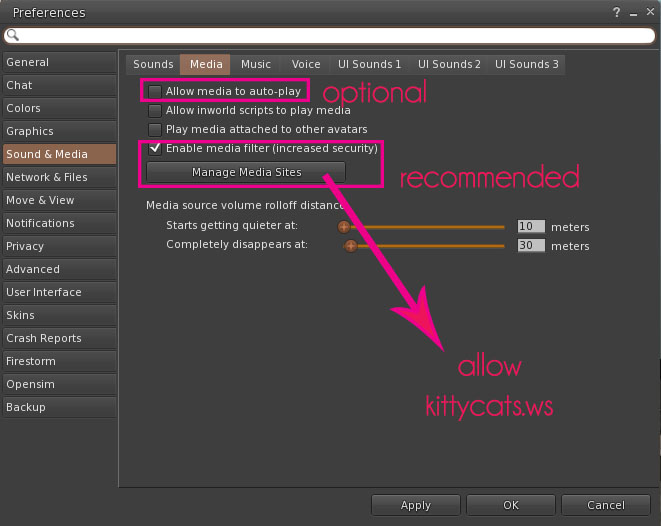
Before setting up your HUD you need to check some media settings in your viewer preferences. This is because the new HUD requires that certain media settings be enabled in order to work properly. These should be your viewer’s default settings, but if you have modified your viewer settings in the past, this is how it should look to make it work:
Firestorm

Singularity

SL Viewer 3

**Please note: Enabling “auto-play of media” is NOT required for your HUD to work. Leaving it enabled means that you do not have to click on the HUD to activate it when you log in.**
Now, when you first get your HUD and attach it, it will look like this:
Don’t worry – this is how it is supposed to look! Click anywhere on the HUD to “check in” and the HUD should change to look like this:
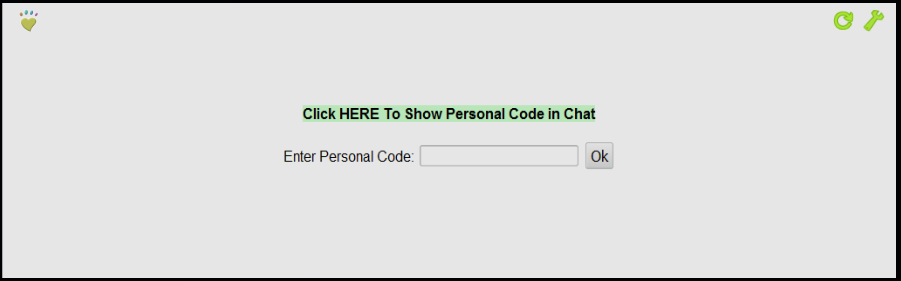
Click the text highlighted in green and a code will be generated into your Local (or Nearby) Chat like so:
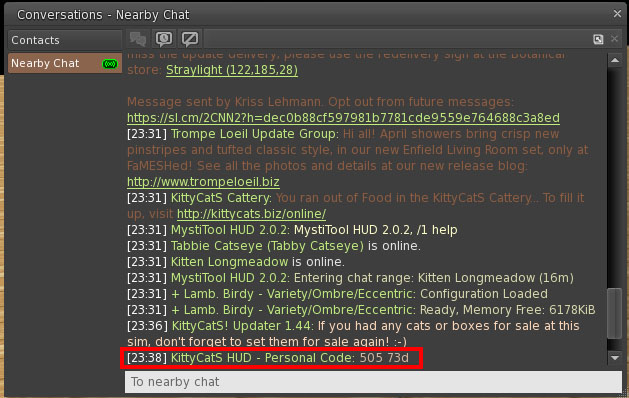
Copy this code and enter it into the form field on your HUD, and then click “Ok”. You will only need to enter this code one time:
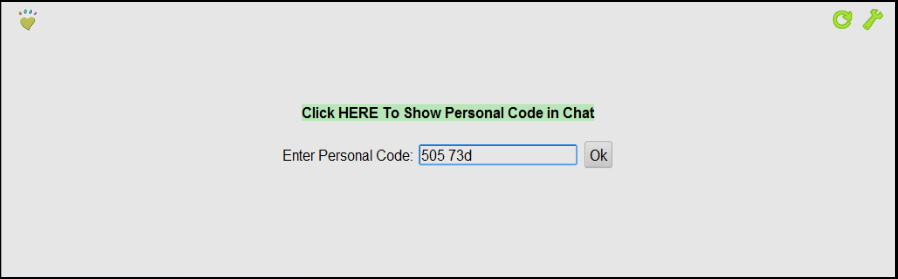
Now your HUD should refresh and look like this:
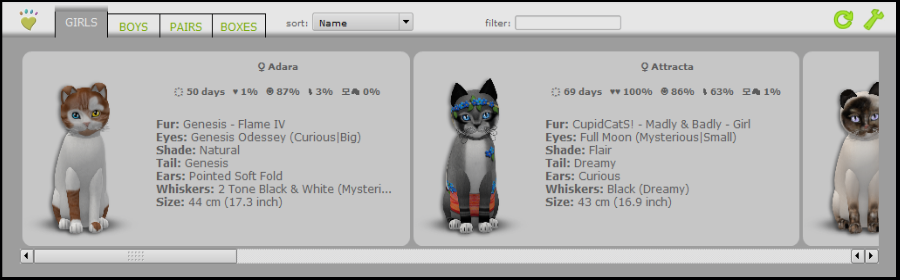
Now your HUD is ready to use! To help you understand the various functions of the HUD, both old and new, we’ve put together this little info-graphic for you:

Please note, you must click once inside your HUD before you can start using the interface. This is an SL limitation and is required each time you click somewhere outside your HUD.
And that’s it! Hopefully this guide has been helpful. If you have ANY trouble getting your HUD set up, please contact us and let us know so that we can assist you.
Enjoy!
Your KittyCatS Team